What an issue is
An issue is a unit of work after intake: a bug, a feature request or a support question. Every issue has a kind (Bug, Feature or Support), a priority (critical, high, medium, low), a status and preferably a project. The project decides which repository, documentation and rules the AI may use.
How an issue comes about
| Entry | How |
|---|---|
| Create it yourself | New Issue at the bottom of the sidebar, or the button in a project's Issues section. |
| From an e-mail | Create issue in the Inbox, or automatically per mailbox. |
| From Slack or Teams | The bot proposes an issue in the conversation; it is created once someone confirms. |
| From the website chat | An internal chat creates an issue on submit; the public chat only on a request, where the widget allows it. |
| Through the public API | Your own systems create an issue with an API key. Such an issue has no project yet. See Public API. |
| Importing a ticket | In Slack or Teams you can import an existing Jira or Freshdesk ticket through the card. New tickets in your support software do not become issues by themselves, except new Jira tickets when ticket import is switched on for the project's Jira link. |
Creating an issue
- Click New Issue.
- Fill in: Title, Project, Kind, Priority (High by default), and where needed Customer, Reporter, Flags, Description and Attachments.
- Choose Create issue.
Choose a project. Without a project FixControl has no verified test environment for the work, and without an environment the sandbox cannot test the change properly. If you forgot, link the project later through the issue's work session (the No project section).
What happens next depends on the project:
- For a project with the goal Fix software problems, FixControl starts an AI mission straight away.
- For a support project (and for Control deployments and Investigate security risks) it waits until someone chooses Run fix.
- For a knowledge project a mission never starts.
- An issue without a project always starts a mission straight away.
Per kind
| Kind | What the page starts with | What happens |
|---|---|---|
| Support | The draft reply. | You answer the customer. There are no development actions. |
| Bug | Risks and impact. | An AI mission investigates, proposes a patch and tests it. |
| Feature | Triage before anything is built. | Follow-up actions are proposed when the issue is created; a mission can then build it. |
If the kind is wrong, change it with Edit. The page adapts straight away.
The main button on the issue page
The issue page always shows one main button, depending on where the work stands:
| Button | When | What it does |
|---|---|---|
| Review | An approval is waiting. | Takes you to the decision. |
| Test in sandbox | There is a patch that has not been tested yet. | Starts a sandbox test of the patch. |
| Apply | The patch is approved and the test passed. | Opens the patch, where you open the pull request. |
| View patch / View sandbox run | In other situations with a patch. | Navigation only. |
| Run fix | There is no mission and no patch yet. | After a short explanation (Start the fix), starts a full AI mission: plan, plan approval where needed, execution by the agents, patch and test. |
| Reply to customer | A draft reply is ready. | Puts the cursor in the reply field. |
Under ⋯ you find Edit, Reject, Mark as duplicate, Split, Edit and try again (once a mission exists), Open details and Delete.
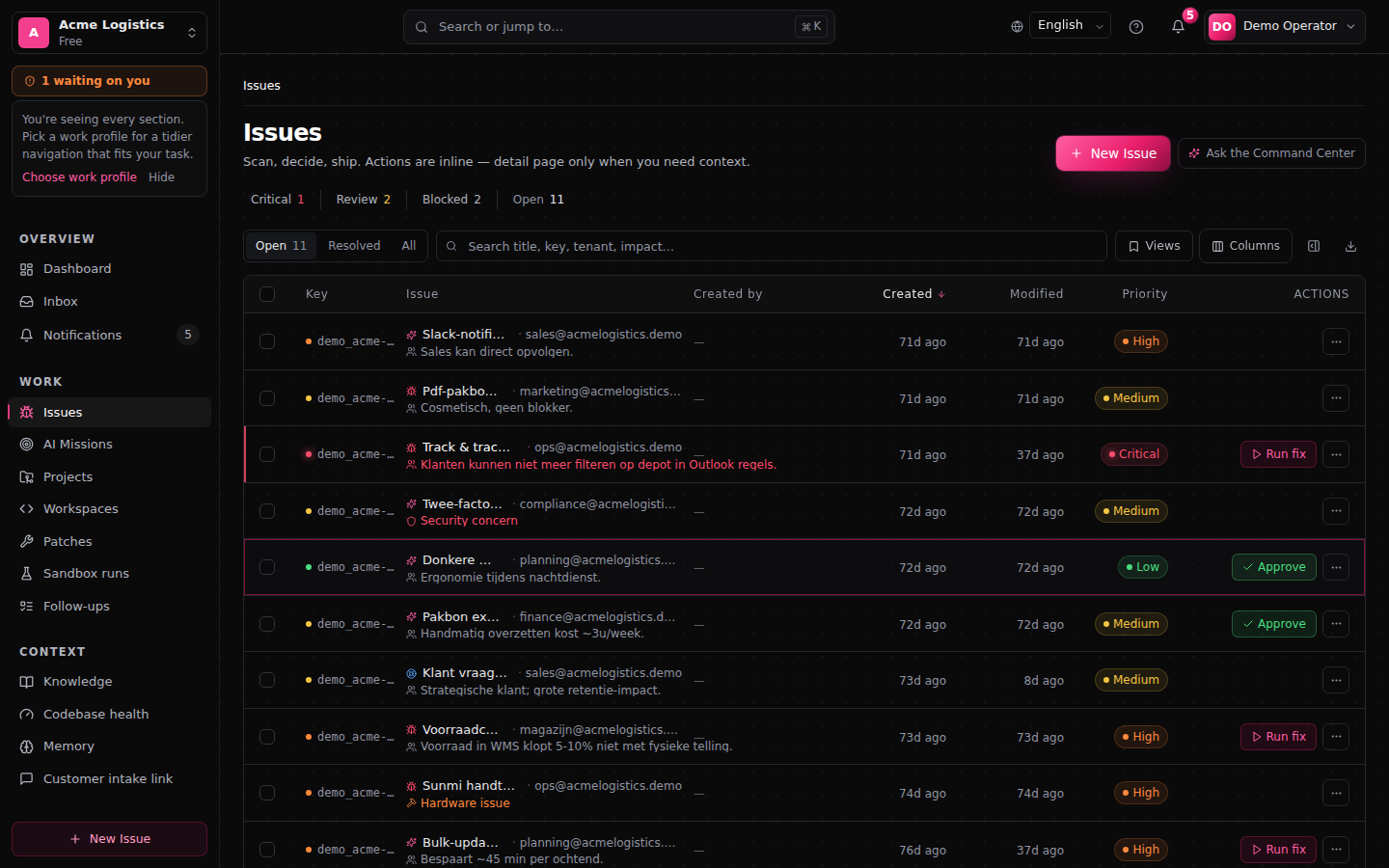
In the issue list, Run fix (shortcut f) means something else: there it starts a quick trial run of the developer agent that proposes a patch, without a mission and without a pull request. Approve in the list marks an issue as ready for development.How an AI mission runs
- Investigation — the agents read the issue, the project context and the code.
- Plan — for priority critical or a risk flag, first an execution plan that someone approves. See Approvals.
- Execution — the developer agent writes a patch, the CTO Review agent reviews it.
- Test — the sandbox tests the patch. See Verification and results.
- Decision — a person, or for work without a risk flag the CTO Review agent after a passing test.
- Delivery — as a pull request. See Delivering changes.
During the mission the issue page shows the phase and what the AI team did. The status in the header says in plain language where the work stands, for example Waiting for your approval, Patch is being tested or Ready to apply.
Revisions are bounded. When the CTO Review agent asks for changes, the developer agent makes at most three revisions by default; after that the patch waits for a person. After a failed test, at most two automatic revisions follow by default. Every version stays visible so you can compare.
AI explanation on an issue
- Confidence — how sure the model is of its own assessment.
- Risk — a separate judgement of the consequences. High confidence and high risk often go together; read both.
- Why — the model's reasoning.
The list
The issue list supports saved views, filters, sorting, CSV export and selecting several rows at once (x, Shift+x, Cmd/Ctrl+A) to Approve, Reject or Delete. Opening a row opens the issue in a panel on the right. Shortcuts: see Keyboard & command palette.
A deleted issue leaves active work, but its audit history, approvals and test results are kept; an admin can restore it.
When it does not work
| What you see | What it means | What you do |
|---|---|---|
| No mission starts after creating the issue | The project does not start remediation automatically. | Choose Run fix. |
| This run had no project in the test result | The issue does not belong to a project, so there was no test environment. | Link the issue to a project and test again. |
| Mission blocked | The mission is waiting for something: an approval, an answer, or a step that could not run. | Open the mission; the blocker is shown there. See Troubleshooting. |
| No development buttons | The issue's kind is Support. | Change the kind if it is a bug or feature. |
See also: Work session · Approvals · Verification and results