What you achieve
A work session is a chat with an AI agent that has access to one project's codebase. You use it for work your team starts itself: a known bug, a small change, an investigation in the code. The agent can read files, search, and propose concrete changes as a patch. It never writes to your repository by itself.
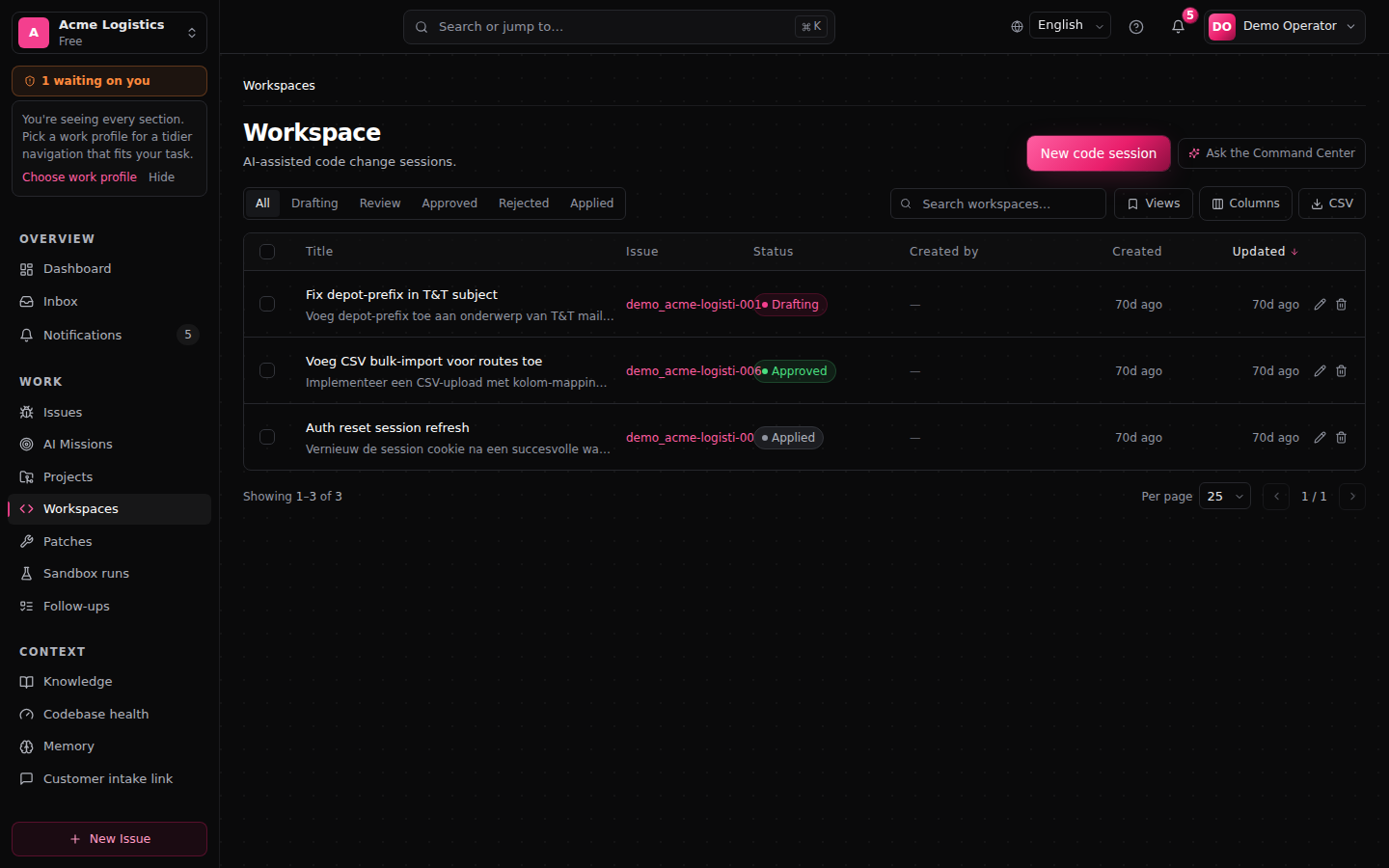
Work sessions live under Work sessions in the sidebar. With the starter work profile that menu item appears once there is a work session; you can also start from a project.
What you need first
- A project with a connected repository. See Projects.
- To have the patch tested: a verified test environment for the project. See Verification and results.
Starting a session
- Go to Work sessions and click New code session.
- Pick the Project (required). Codebase and branch follow from the project.
- Give a Session title, optionally a Linked issue (for example
BIZ-29) and an Instruction. - Click Start session. You land straight in the chat.
From there you ask questions, request changes, or attach screenshots and files.
Steering the agent while it works
You do not have to wait for the agent to finish. As soon as you type while it is busy, the button becomes Send instruction. Your message goes to the agent that is already running; it takes it into account after its current step, without starting over. The message appears with the label added during run.
If the run has just ended or the agent can no longer take messages, your message gets the label sent as the next turn and goes out as a normal message once the agent is free. A message is never lost. A new turn continues from the newest patch still in play.
Stop interrupts a running agent.
What the agent can and cannot do
The agent can explore the codebase (list folders, read files, search) and propose changes. It never writes to your files by itself: every change goes through the patch panel.
On the hosted service the agent works in a restricted mode by default: no shell commands and no fetching of web pages. FixControl manages that setting for the platform; you cannot change it per workspace.
Handling a patch
When the agent proposes a change, the patch panel shows the changed files and the diff. Nothing changes in your codebase until someone decides so.
| Button | What it does |
|---|---|
| Approve | The patch is accepted. |
| Reject | The patch is dropped. |
| Request changes | The agent produces a new version with your feedback. |
| Run verification | Starts a sandbox test of this version. |
| Re-run revision | Has the agent produce the last revision again. |
| Dry run | A static check that only produces a report; nothing is tested or applied. |
| Open pull request | After approval and a passing test: shows the title, description and commit message, and opens the pull request once you confirm. See Delivering changes. |
Admins and managers may approve and deliver; an operator can run a session and start a test. Every patch has versions: earlier versions stay visible and move to Archive on the Patches page once a newer version exists.
If the session is linked to an issue with a running mission, an approval gate can appear above the patch. Handle it first. See Approvals.
What the session remembers
A session remembers the whole conversation, also after a reload or days later. Long conversations are summarized so the agent keeps the thread. Compact summarizes the conversation yourself; + New starts a new session.
When it does not work
| What you see | What it means | What you do |
|---|---|---|
| The session finds no code | The project has no connected repository. | Have an administrator connect a repository under Connections. |
| The test says This run had no project | The session is not linked to a project with a test environment. | Link the right project and run the verification again. |
| Your message gets sent as the next turn | The running agent could no longer take it in. | Wait until the agent is free, or choose Stop. Your message then goes out by itself. |
FAQ
Does the agent change files itself? No. A change only reaches your repository through an approved patch, as a pull request.
Can I resume a session? Yes, reopen it from Work sessions. The history stays until you delete the session.
See also: Issues · Verification and results · Delivering changes